
Your Windows 11 Boot Failed: What Happened and How to Recover Your PC
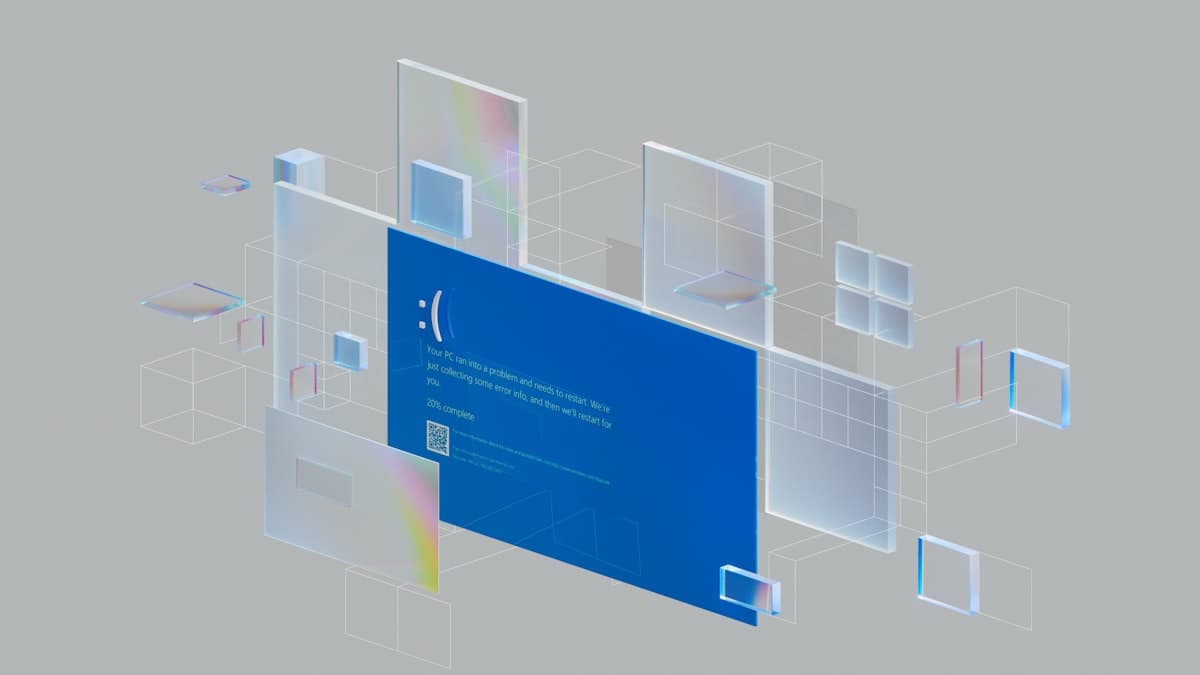
Let me break this down: if your Windows 11 computer stopped booting after January 13, 2026, and you're staring at a blue screen with the message UNMOUNTABLE_BOOT_VOLUME, you're not alone. Microsoft dropped the ball again with a faulty update, and thousands of users worldwide have been left staring at a blue screen with no idea what to do.
Think of it like this: you come home after a long day, turn on your computer to finish an important project, and instead of seeing your desktop, you're greeted with a cryptic error that basically says: "your boot disk doesn't exist." That's exactly what's happening with update KB5074109.
In this guide, I'll walk you through step by step how to recover your PC, even if you don't have advanced technical knowledge. I've helped dozens of users this week with this exact problem, so I know exactly what works and what doesn't. Take a deep breath—your files are probably still there, and we're going to get them back.
What Is the UNMOUNTABLE_BOOT_VOLUME Error and Why Won't Your PC Boot
What most guides won't tell you is that this error doesn't mean your hard drive is broken or that you've lost your files. The problem is much more specific: Microsoft's KB5074109 update corrupted certain critical files that Windows needs to start up.
The trick is understanding what Windows does when it boots. To put it simply: your computer first loads a small program (the bootloader) that then "mounts" your main drive and loads Windows. What this update did was damage that mounting process, so Windows literally can't access your disk even though it's perfectly fine.
Affected versions:
- Windows 11 24H2 (Build 26100.7623)
- Windows 11 25H2 (Build 26200.7623)
Microsoft officially acknowledged the problem on January 25, 2026, almost two weeks after the update rolled out. During that time, millions of users were left without official answers.
Beyond the boot issue, this update brought other unwanted gifts:
- OneDrive and Dropbox crash constantly
- Outlook Classic freezes when opening
- General performance problems
Microsoft released emergency patches (KB5077744 and KB5078127), but here's the important part: these patches DO NOT fix the boot problem. KB5078127 fixes the OneDrive issue, but if your PC won't boot, you obviously can't install it.
How to Know If Your Problem Is Exactly This
Before following any solution, make sure your situation matches these symptoms:
Confirmed symptoms:
- Your PC was working perfectly until recently (after January 13)
- You see a blue screen (BSOD) with the code UNMOUNTABLE_BOOT_VOLUME
- The error appears every time you try to boot
- You have Windows 11 version 24H2 or 25H2
Signs it might be a different problem:
- The error appeared before January 2026
- You see a different error code
- The PC makes strange noises when trying to boot
- You don't see any image on screen
If your symptoms match the first list, keep reading. If not, your problem might be hardware-related and would need different diagnostics.
Here's a quick way to verify: if you remember Windows asking you to restart to "complete updates" right before the problem started, it's almost certainly this bug.
Solution 1: Uninstall the Problematic Update from WinRE (Most Effective)
This is the solution that works best, and the one I recommend trying first. WinRE stands for "Windows Recovery Environment"—a special recovery mode that Windows has for emergencies exactly like this one.
Step 1: Access Windows Recovery Environment
Here's the trick: since your PC won't boot normally, you need to force your way into WinRE. The method is a bit rough but it works:
- Turn on your computer
- When you see the Windows logo (or your manufacturer's logo), hold down the power button for 5-10 seconds until it shuts off
- Repeat this 3 times in a row
After the third failed attempt, Windows will detect something's wrong and automatically enter recovery mode. You'll see a blue screen with the text "Preparing Automatic Repair" or "Choose an option."
Step 2: Navigate to the Uninstall Options
Once you're on the recovery screen:
- Click on "Troubleshoot"
- Select "Advanced options"
- Click on "Uninstall updates"
- Choose "Uninstall latest feature update"
Windows will ask for confirmation. Accept and wait. The process can take between 10 and 30 minutes depending on your hardware.
Step 3: Verify That KB5074109 Is Being Uninstalled
During the process, you should see references to the update being removed. If everything goes well, your PC will restart automatically, and this time it should boot normally.
What if the uninstall updates option doesn't appear?
In some cases, especially if you have BitLocker enabled, Windows will ask for your recovery key. This key should be:
- In your Microsoft account (account.microsoft.com/devices/recoverykey)
- On a USB drive if you saved it manually
- On a piece of paper you printed when you activated BitLocker
Without this key, you won't be able to access recovery options on an encrypted disk. This is a good reminder of why it's crucial to store those keys somewhere safe.
Step 4: After Recovering Access
Once your PC boots correctly, don't install updates automatically. Go to:
- Settings > Windows Update
- Click on "Pause updates" for 1-2 weeks
- Wait for Microsoft to release a definitive patch
I also recommend checking out the best cybersecurity tools for 2026 to create security backups and prevent a problem like this from leaving you without access to your important files in the future.
Solution 2: Use a Windows 11 Installation USB
If the first solution didn't work or you couldn't access WinRE, this is your next best option. You'll need another working computer to create the USB.
What you need:
- A USB flash drive of at least 8GB (all its contents will be erased)
- Another computer with internet access
- About 30-60 minutes of patience
Creating the installation USB:
- On the working computer, go to microsoft.com/software-download/windows11
- Download the "Media Creation Tool"
- Run the tool and accept the terms
- Select "Create installation media"
- Choose your language, edition (Windows 11), and architecture (64-bit)
- Select "USB flash drive" and follow the instructions
Booting from the USB:
- Connect the USB to the PC that won't boot
- Turn on the PC and access the BIOS/UEFI (usually by pressing F2, F12, Del, or Esc during startup)
- Look for the "Boot Order" or "Boot Menu" option
- Set the USB as the first boot option
- Save and restart
Using the repair tools:
When it boots from the USB, you'll see the Windows installation screen. But we're not going to reinstall—we're going to repair:
- On the first screen, click on "Repair your computer" (bottom left corner)
- Go to "Troubleshoot" > "Advanced options"
- From here you can try "Startup Repair" or access "Command Prompt"
The "Startup Repair" option tries to fix problems automatically. If it doesn't work, we move on to the next solution with manual commands.
Solution 3: Manual Repair Commands (For Advanced Users)
If nothing above worked, we can try to manually repair system files using commands. Don't be intimidated by the terminal—I'll walk you through it step by step.
Accessing Command Prompt:
From WinRE or from the installation USB, go to: Troubleshoot > Advanced options > Command Prompt
Command 1: Check and repair the disk
chkdsk C: /f /r
This command does two things: /f fixes file system errors, and /r locates bad sectors and recovers information. It can take a long time (even hours on large drives). Let it do its work.
Important note: If your Windows drive isn't C: in the recovery environment (sometimes it's D: or E:), you can type dir C: to see what's there. If you see your Windows folders, it's the right one. If not, try other letters.
Command 2: Verify system integrity
sfc /scannow /offbootdir=C:\ /offwindir=C:\Windows
This command scans all protected Windows files and replaces corrupted ones with correct versions. The /offbootdir and /offwindir parameters tell it where Windows is located when running from recovery.
Command 3: Repair the Windows image
DISM /Image:C:\ /Cleanup-Image /RestoreHealth
DISM (Deployment Image Servicing and Management) is a more powerful tool that can repair damage that sfc can't fix. This command can take 15-30 minutes.
Command 4: Rebuild the BCD (Boot Configuration Data)
If the previous commands didn't solve the problem, the bootloader might be corrupt:
bootrec /fixmbr
bootrec /fixboot
bootrec /rebuildbcd
Run these three commands in order. The last one will ask if you want to add a Windows installation to the boot list; type Y and press Enter.
After the commands:
Type exit and press Enter to close the command prompt. Restart the PC, removing the USB if you used one. With any luck, Windows should boot now.
How to Prevent This from Happening Again
Look, I get the frustration. You trust that Microsoft's updates will improve your system, not break it. But the reality is this happens more often than it should, and there are ways to protect yourself.
1. Delay updates by a few days
Windows lets you pause updates. My recommendation: set a delay of 7-14 days. That way, if an update comes out broken (like KB5074109), other users will catch it before it reaches your PC.
To do this: Settings > Windows Update > Advanced options > Pause updates
2. Create restore points regularly
Windows can create "snapshots" of your system state that allow you to roll back if something goes wrong. Enable it:
- Search for "Create a restore point" in the start menu
- Select your main drive and click "Configure"
- Enable system protection
- Allocate at least 5-10% of the disk for restore points
3. Consider automated backup tools
Automation tools like the ones I explain in the n8n guide can schedule automatic backups of your important files to the cloud or an external drive.
4. Always have a recovery USB ready
Create a Windows installation USB now while everything works, and keep it in a drawer. The day you need it, you'll be glad you have it.
5. Save your BitLocker key
If you use disk encryption (many modern PCs have it enabled by default), make sure you have access to your recovery key. Without it, in situations like this, you could lose access to everything.
Official Microsoft Status and What to Expect
Microsoft officially acknowledged the problem on January 25, 2026, almost two weeks after the massive reports began. In their statement they indicated:
"We are aware of an issue affecting some devices running Windows 11 24H2 and 25H2 after installing KB5074109. We are investigating and will provide an update when more information is available."
So far they've released two emergency patches:
| Patch | Date | Fixes boot issue? | What it fixes |
|---|---|---|---|
| KB5077744 | January 20, 2026 | No | Minor performance issues |
| KB5078127 | January 24, 2026 | No | OneDrive and Dropbox crashes |
What this means for you: If your PC won't boot anymore, these patches won't help because you can't install them. The only solution for now is to manually uninstall KB5074109 as we explained above.
Microsoft typically takes 1-3 weeks to release a definitive patch for critical bugs like this. My recommendation is to follow Windows Update news and don't install new updates until they confirm the problem is resolved.
To stay informed, you can check the Windows 11 update history on Microsoft's official page.